Connecting Google Nest to NBN Network
If you are having trouble connecting your Google Nest to the NBN network, please follow the outlined simple self-help steps below. These instructions will guide you through updating your connection profile and power recycling along with necessary steps to hard reset your device as a last resort to fixing your connection issue.
Connection Profile Update Steps
STEP 1: Open the Google Home App
Launch the Google Home app on your mobile device.
STEP 2: Connect to Your Google Nest Device
Ensure the app is connected to your Google Nest device
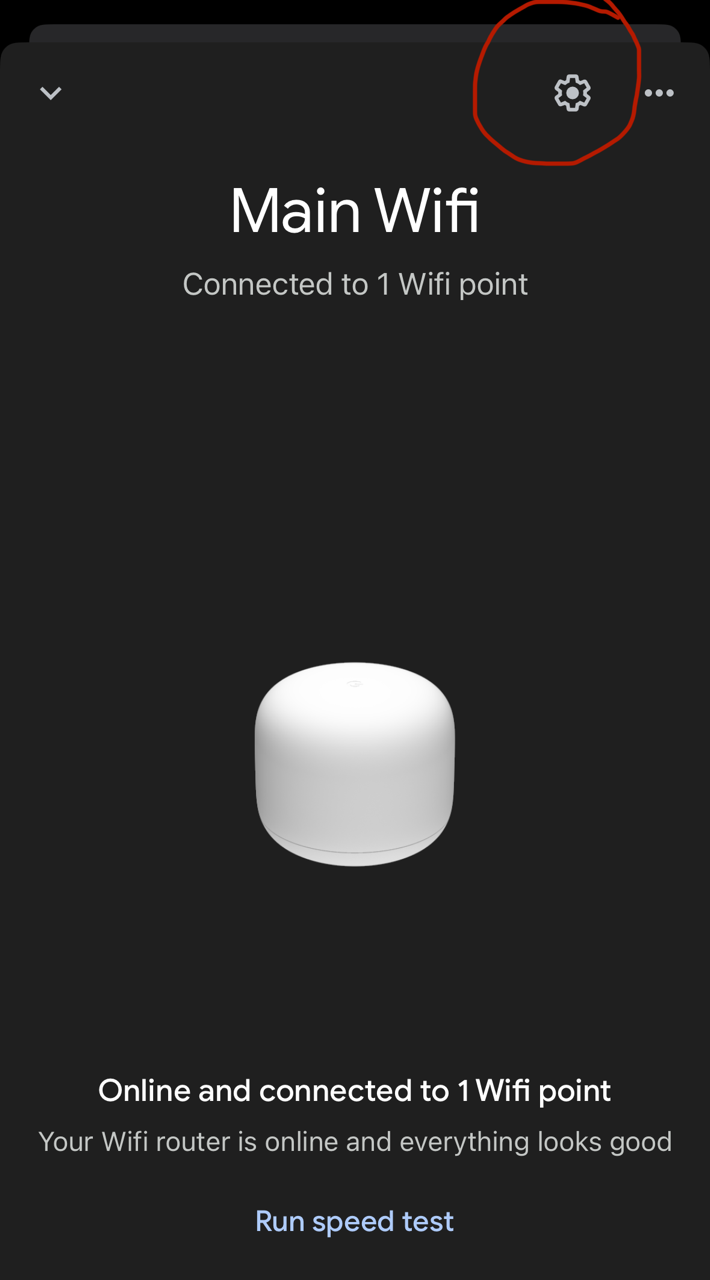
STEP 3: Access Device Settings
Tap the Device Settings icon located at the top-right corner of the app
STEP 4: Go to Network Settings
In the Device Settings menu, select Network Settings
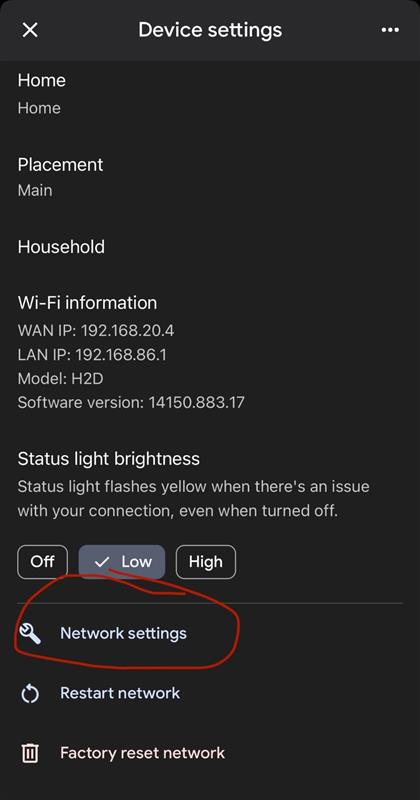
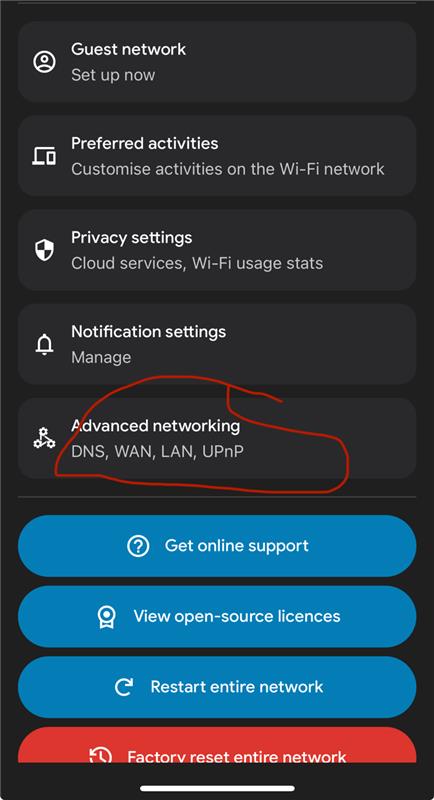
STEP 5: Access Advanced Networking
Within the Network Settings, tap on Advanced Networking to view connection profile options
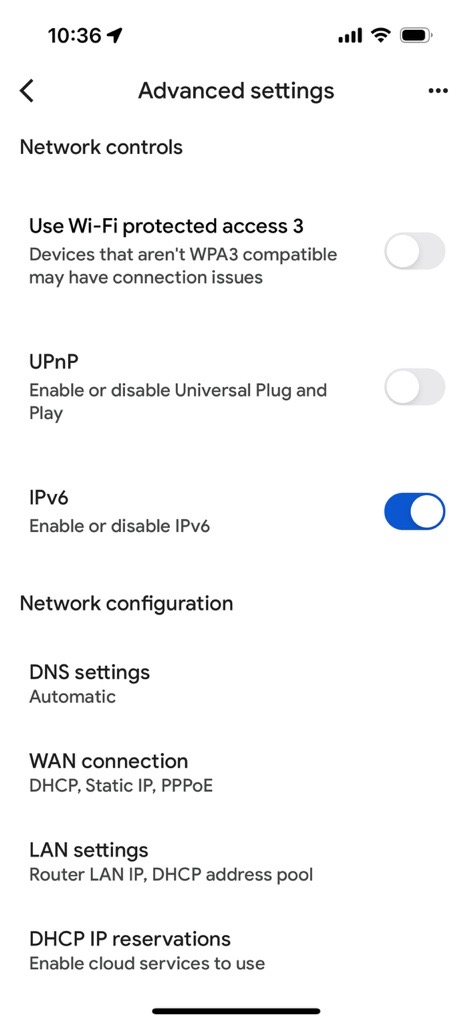
STEP 6: Enable IPv6
Toggle the IPv6 button to enable it. When you try to enable this you may see an error click ok and go back an enable it again.
Wait for 30 seconds to a minute and Test your connection to see if it has stabilized. If you are still not connected then proceed with Step 7 onwards to update the connection type.
STEP 7: Change the WAN Connection Type
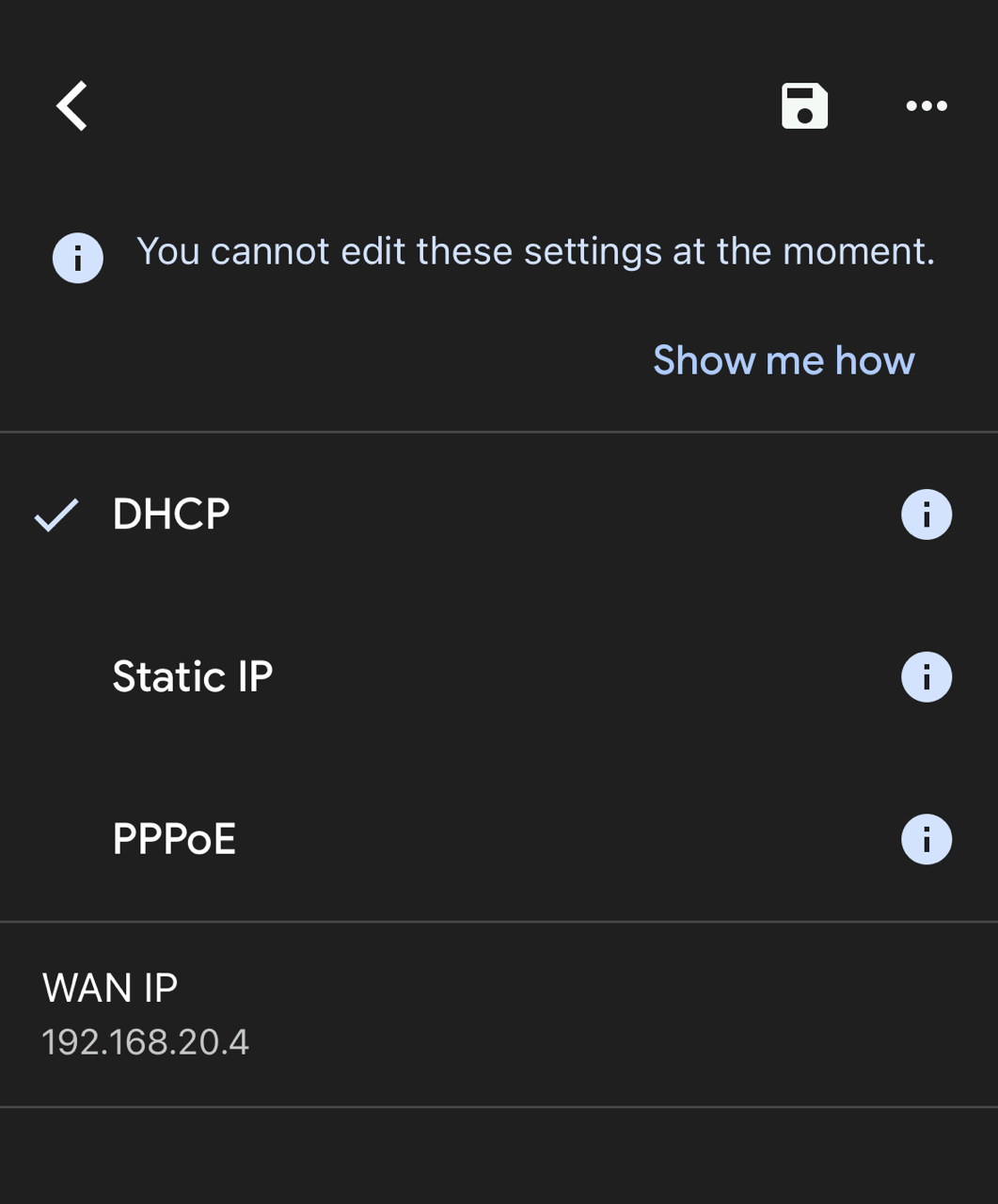
Select WAN Connection to modify the connection type
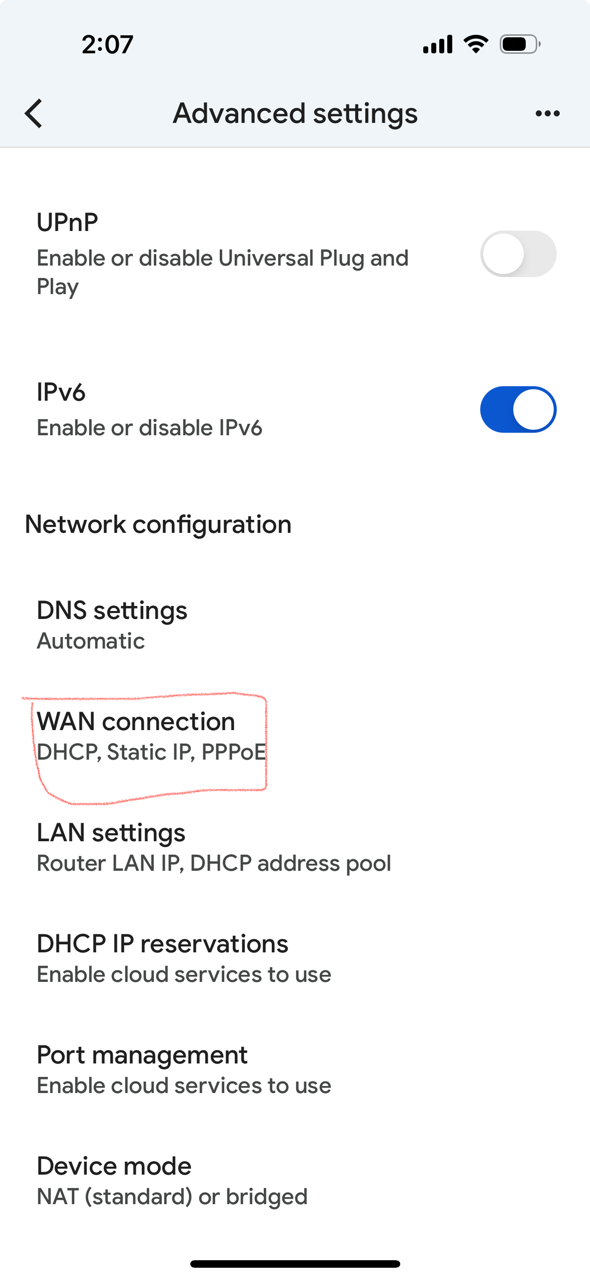
STEP 8: Set Connection Type to DHCP
IMPORTANT: Before proceeding to changing the connection type you must UNPLUG the Ethernet cable from the Google Nest Router.
Change the connection type to DHCP